
For Celebrating your success!
For Celebrating your success!
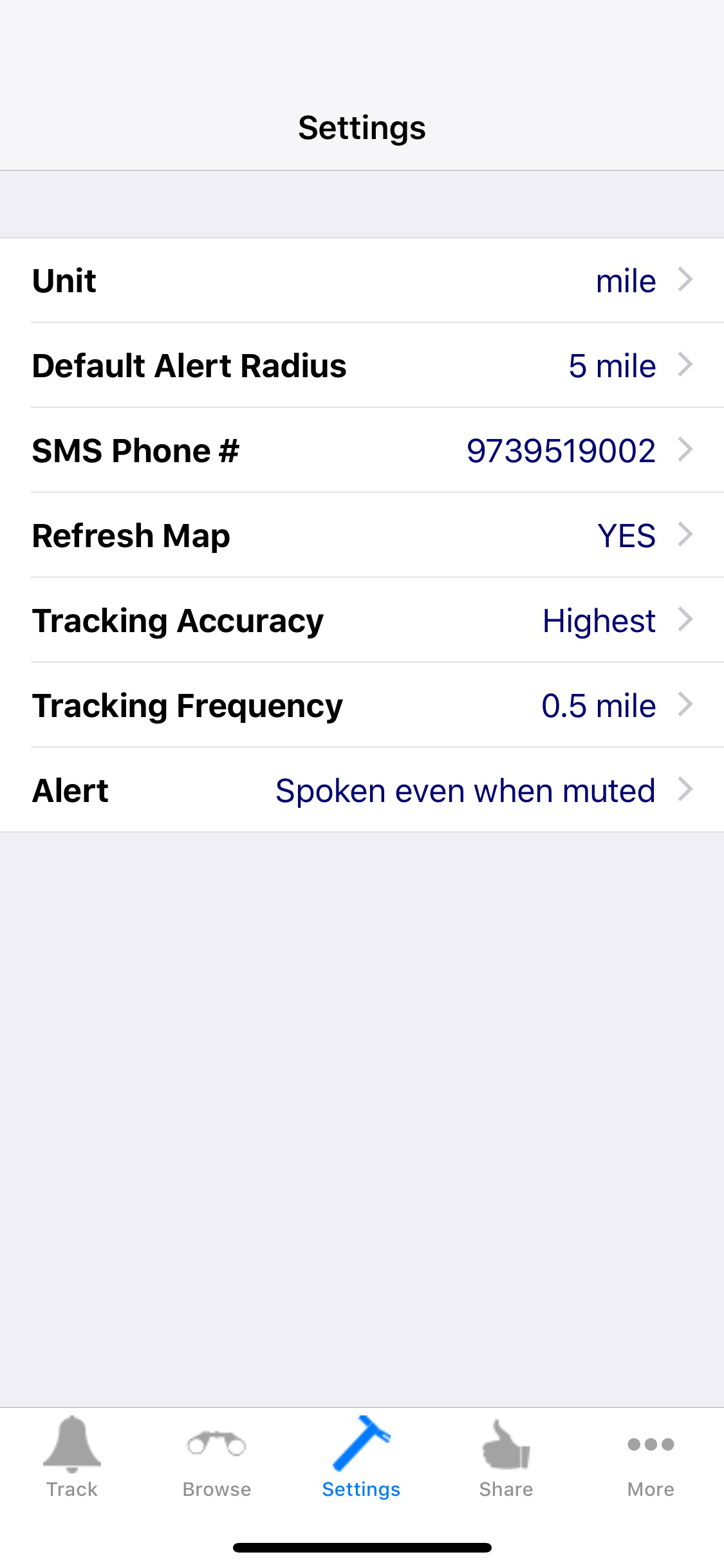
Use the Settings option to define the App preferences. The preferences that can be setup using the Settings screen within TrackMyStop are described on this page.
We recommend that you define your preferences before starting tracking a destination stop. If you change any of the preferences while TrackMyStop is already monitoring your journey, whether in foreground or in background, it will not use the new preferences until you stop and restart tracking.
The various preferences you can setup using the Settings option within TrackMyStop are:
Unit: This can be Mile or KM. The default unit is Mile.
Default Alert Radius: Here you can select the alert radius. When you reach within this radius, TrackMyStop will start alerting you. The default value is 5 miles or KM depending upon your choice of unit.
SMS Phone #: You can specify the default phone number to which you want to send SMS.
Refresh Map: The default setting is YES. This option defines whether or not you want to automatically refresh the map when your location changes.
Tracking Accuracy: Options for this preference are High, Medium and Low. For more accurate updates during your journey and to generate alerts regularly at the Tracking Frequency selected below, choose High or Medium. When Low is selected, updates and alerts about your destination will be generated as and when available. The default for this option is High.
Tracking Frequency: Select a tracking frequency by choosing from following options: If your unit is mile: Every ½ mile, Every 1 mile or Every 2 miles If your unit is KM: Every 0.8 KM Every 1.6 KM or Every 3.2 KM As mentioned earlier, if you set Tracking Accuracy to Low, updates during your journey will be as and when available and this setting for Tracking Frequency may not always apply, especially in spots where network coverage is weak.
Alert Sound: Three choices are provided for the alert sound that will be used to alert you when the application is running in the foreground. Alerts for notifications sent when the application is running in background use default sounds you have selected for your device.
To view the high-level overview of the TrackMyStop functionality, click here.
To return to the TrackMyStop main support page, please visit TrackMyStop support.
Copyright © 2008-2020 Exultancy, Inc. All Rights Reserved.
Exultancy, Inc. 5, Independence Way, Suite 300, Princeton, NJ 08540 * Tel: (609) 514-5111 * E-mail: admin (at) exultancy (dot) com
This site is developed by Exultancy, Inc.